How to Add Collect Fees?
🔍 Search Students
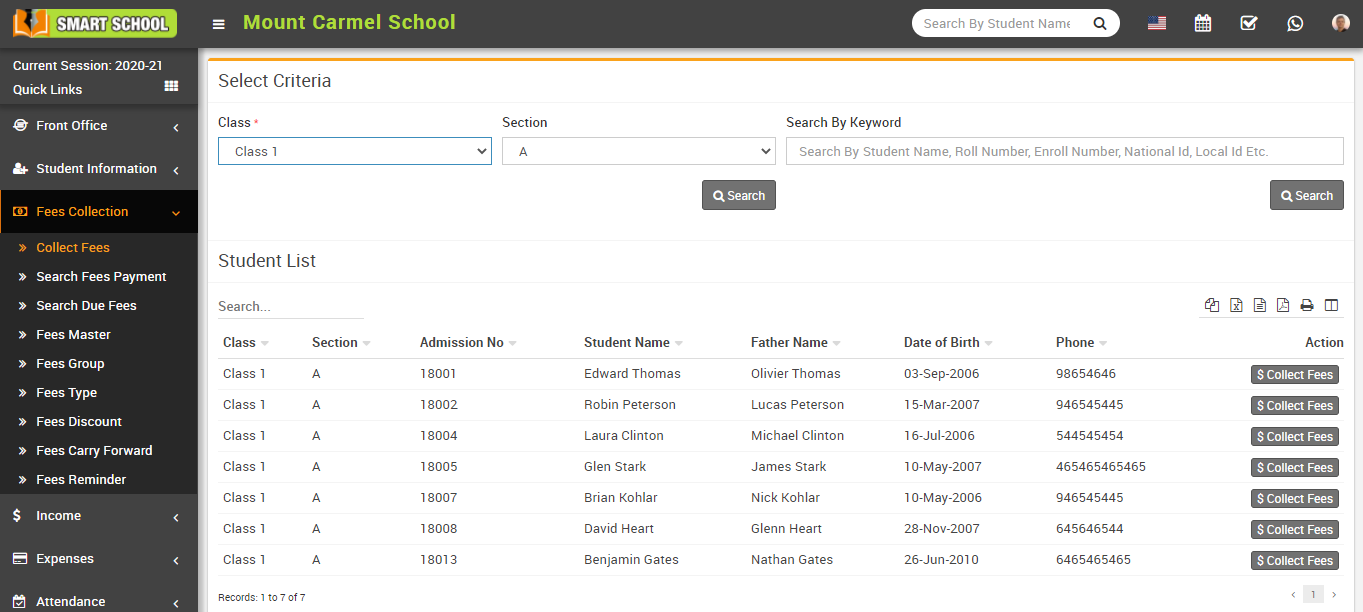
Go to Fees Collection > Collect Fees. Select Class and Section, then click Search.
You can also search using keywords in the Search Text Box.
💳 Collect Fees
Click on Collect Fees button in the Action column. This will open the Student Fees page.
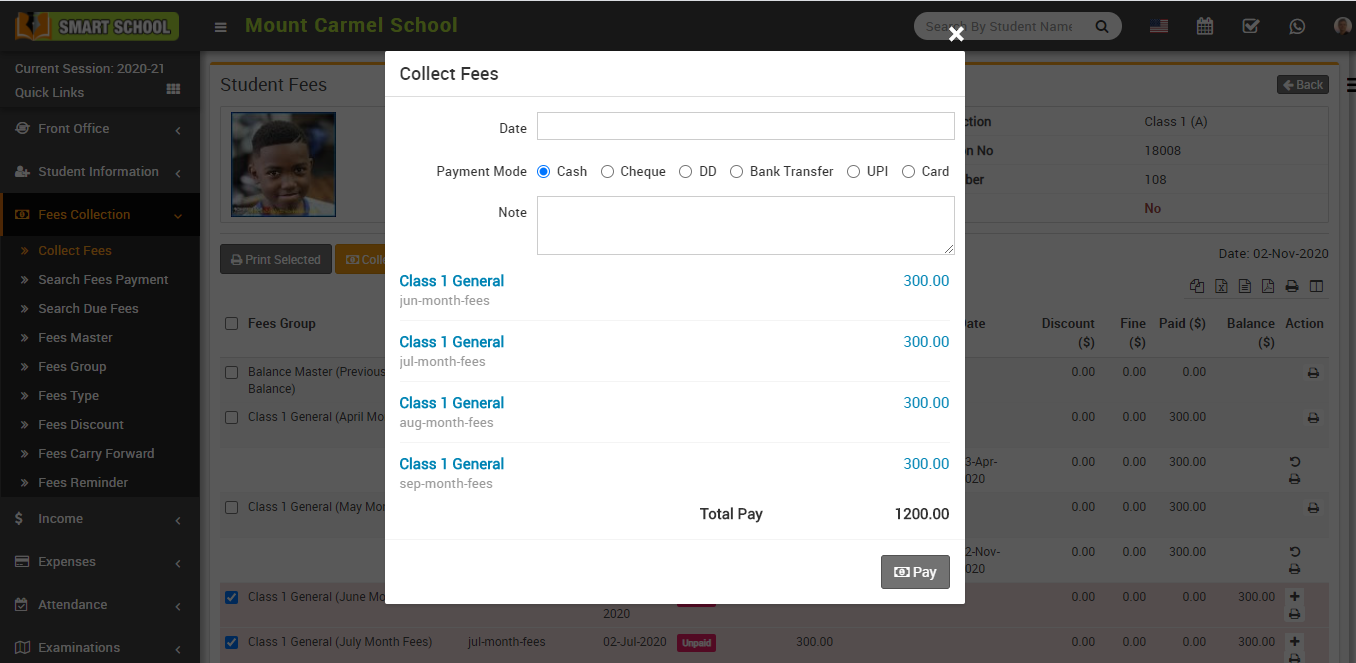
Click on Add (+) icon to open the fee collection modal.
Fill the details: Date, Amount, Discount Group, Discount, Fine, Payment Mode (Cash, Cheque, DD, Bank Transfer, UPI, Card) and Note.
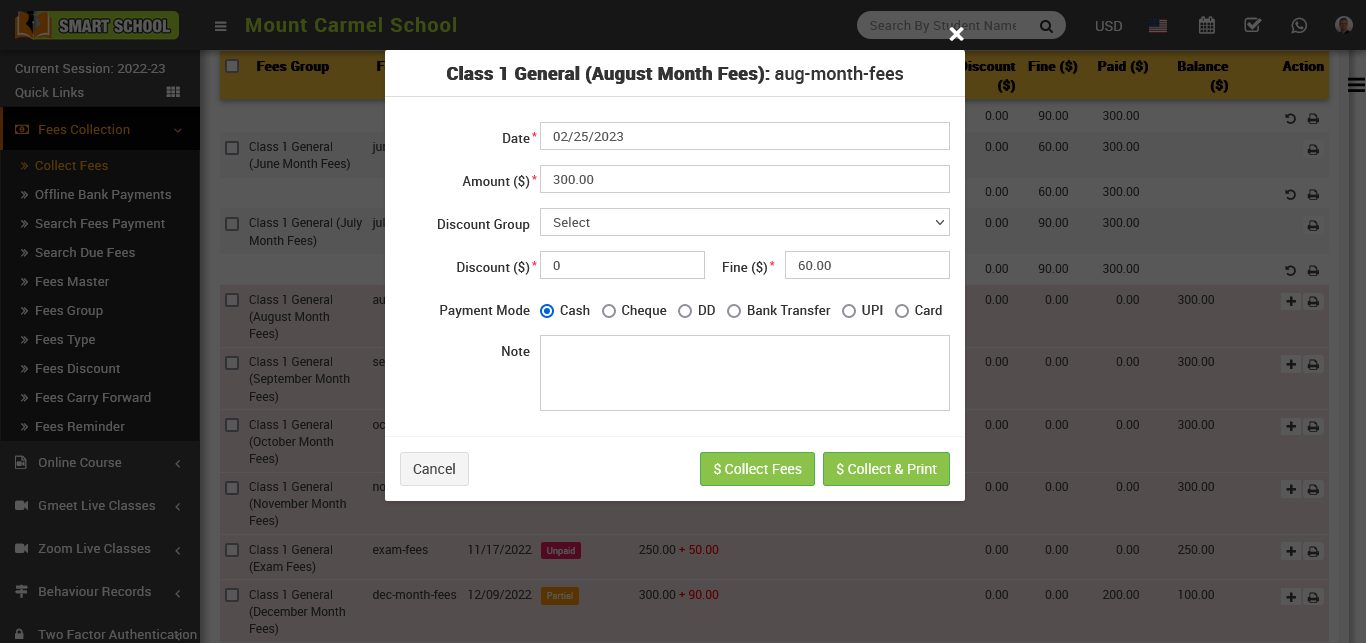
Click Collect Fees. The fee status will be updated to Paid.
🧾 Print Receipt
Click on Print button in the Action column to generate receipt.
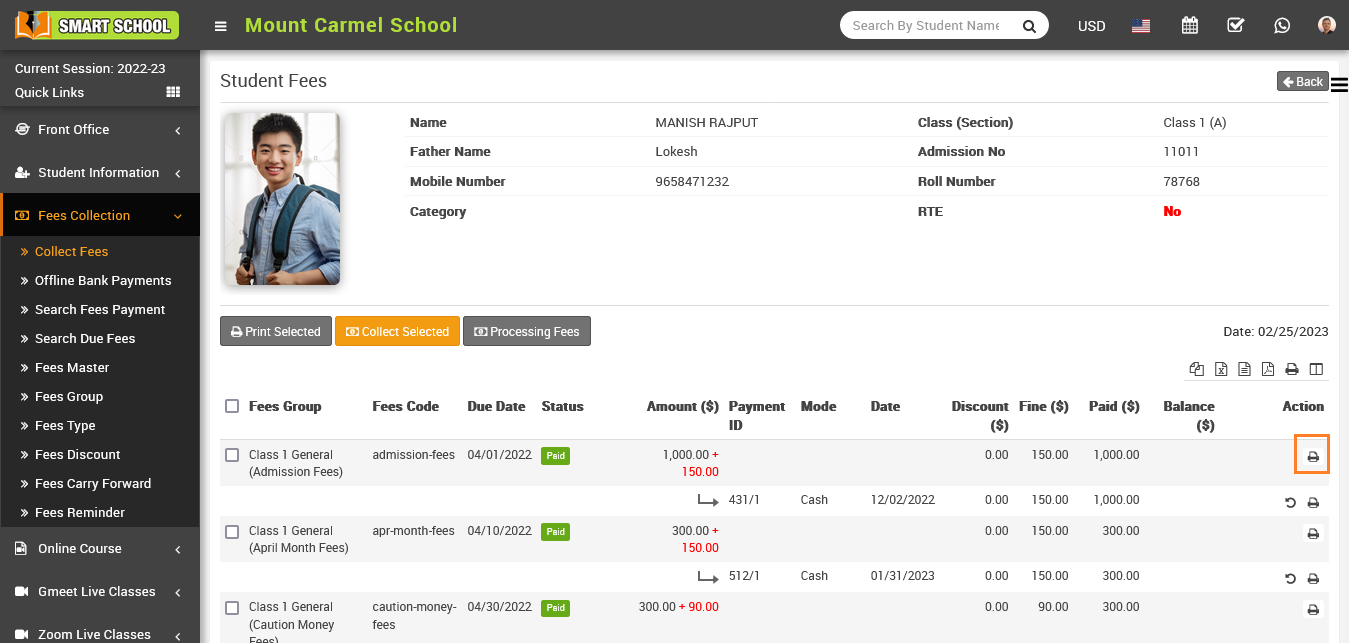
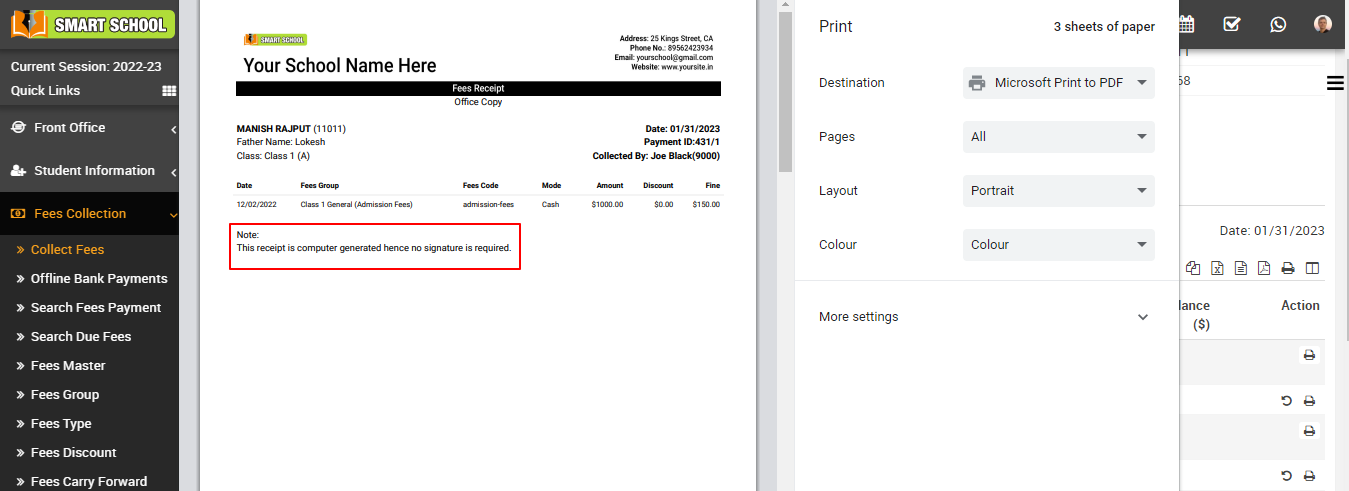
The receipt includes all fee details and note: "This receipt is computer generated, hence no signature is required".
↩️ Revert Fees
Click on Revert button to undo collected fees.
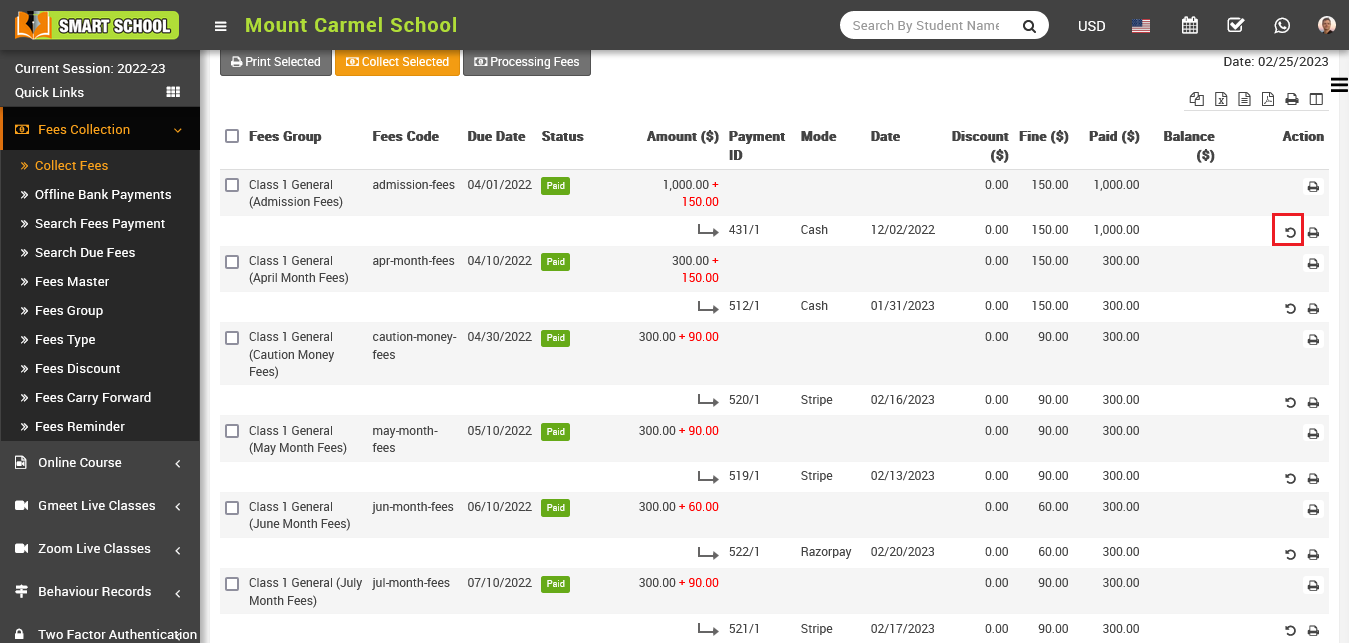
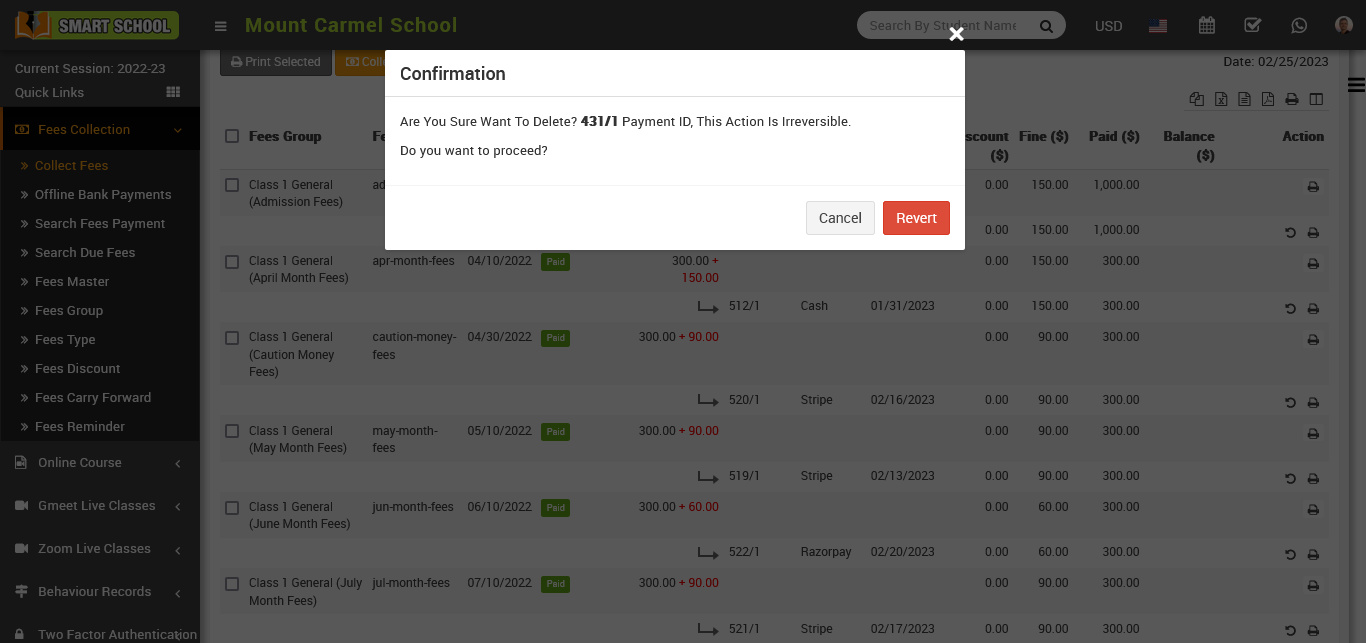
Confirm the action in the popup to revert fees.
📦 Collect Multiple Fees
Select multiple students using checkboxes and click Collect Selected.
🎯 Apply Discount
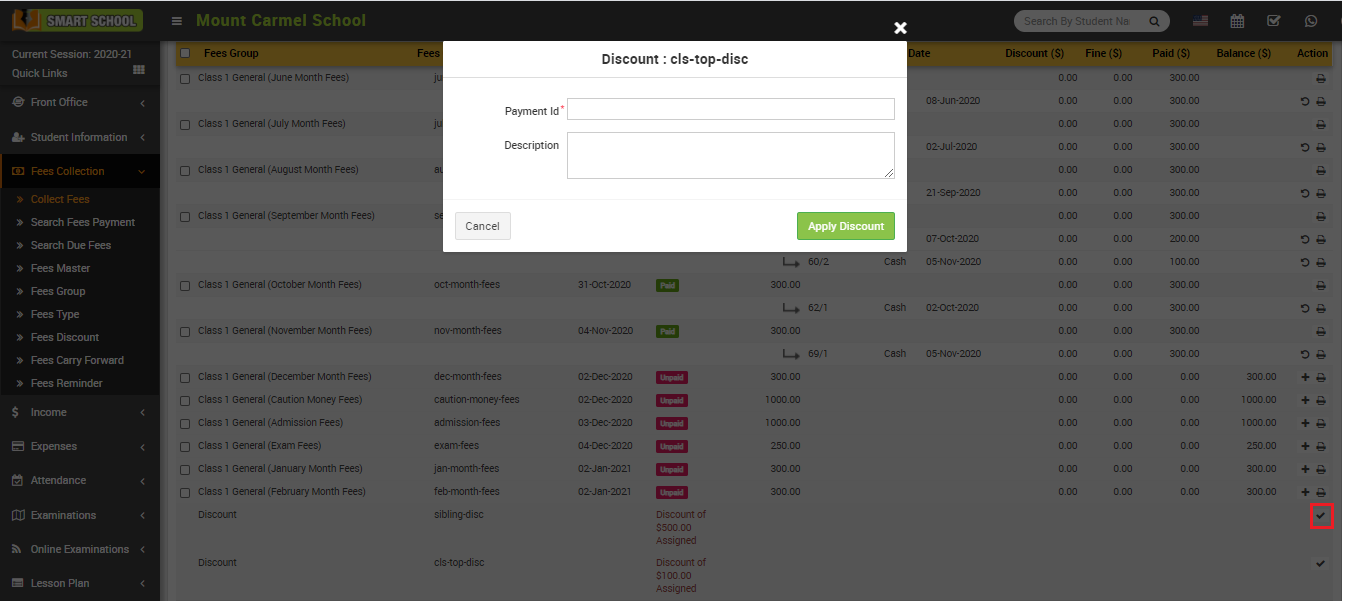
Click on Apply Discount from Action column.
Enter Payment ID and Description, then click Apply Discount.