How to Add Exam Group?
➕ Add Exam Group
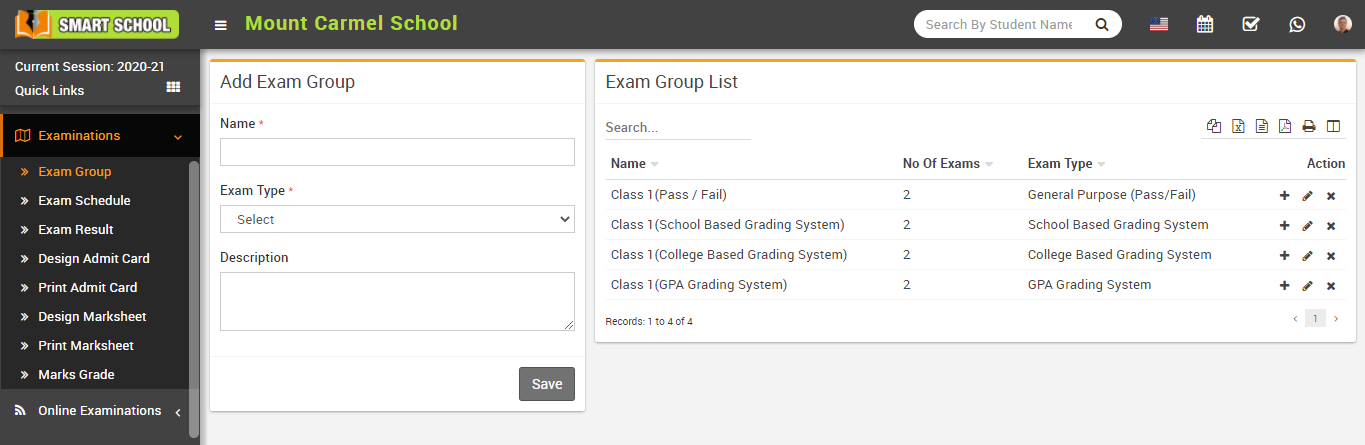
Go to Examination > Exam Group then enter Name, select the Exam Type and add Description. Click on the Save button to create the exam group.
The added record will be visible in the Exam Group List.
📝 Add Exam in Group
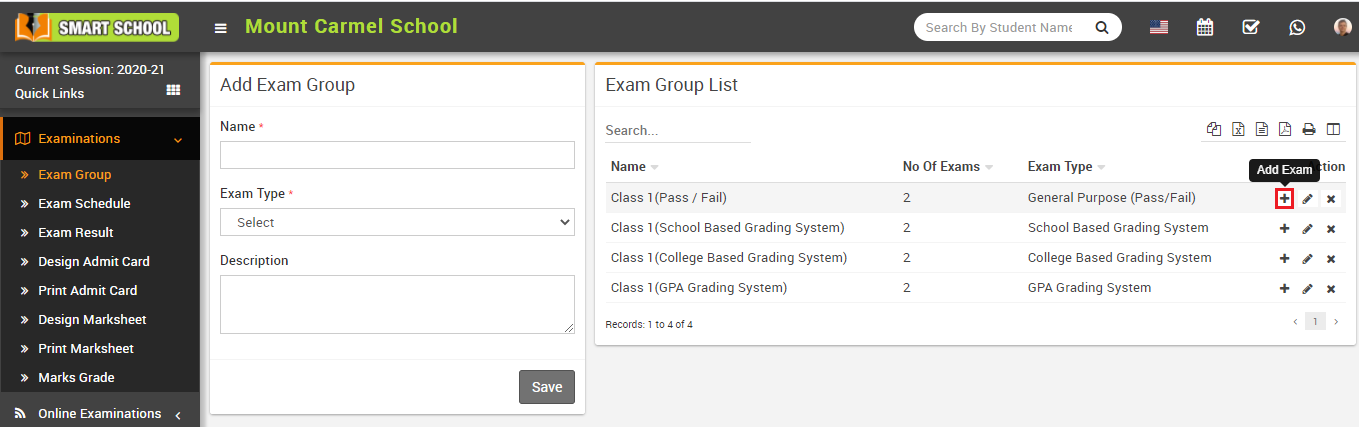
Click on the Add (+) icon in the Action column of the exam group list. This will open the Exam List page.
➕ Create New Exam
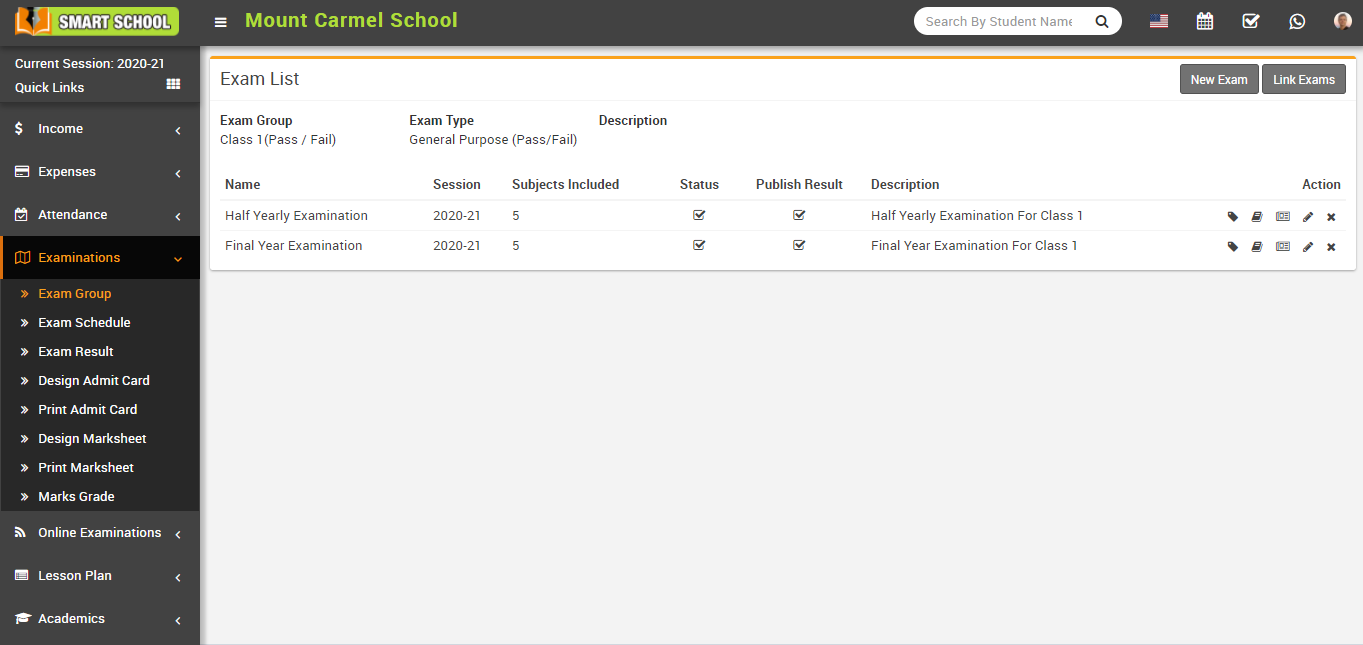
Click on the New Exam button at the top right corner. A modal will open where you can enter exam details.
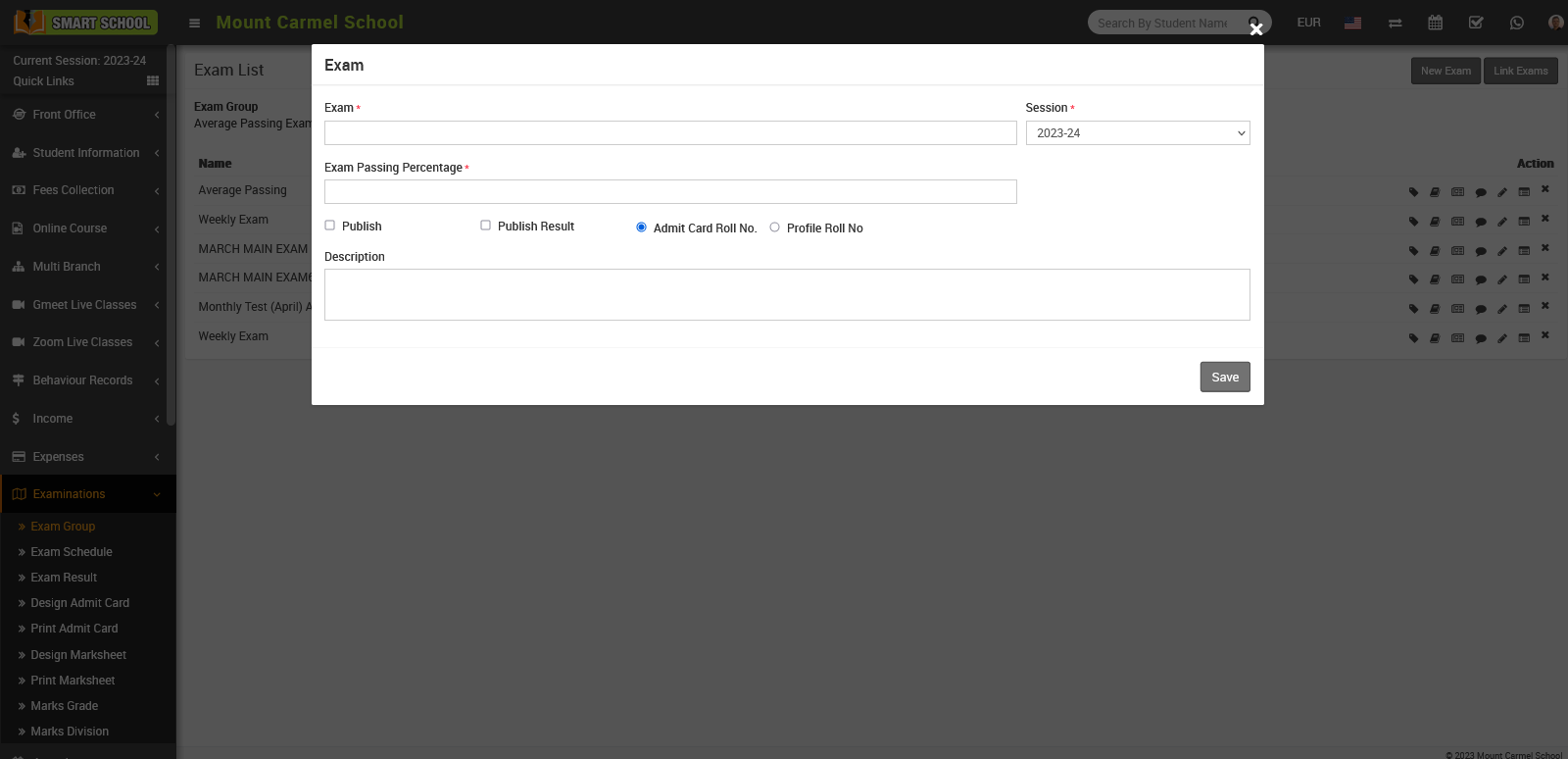
Fill the following details:
- Exam Name
- Session
- Publish / Publish Result
- Roll Number (Admit Card or Profile)
- Exam Passing Percentage
- Description
Click Save to add the exam. The record will appear in the exam list.
✏️ Manage Exam
- Click Edit icon to update exam details
- Click Delete icon to remove exam